Patent Loop Docket keeps every matter and deadline in one place. Its Windows app connects the docket to Outlook: new mail is read as it arrives, the dates it calls for are docketed for you to check, and Ask answers questions about your docket and your inbox. Nothing is sent, moved, or closed without you.
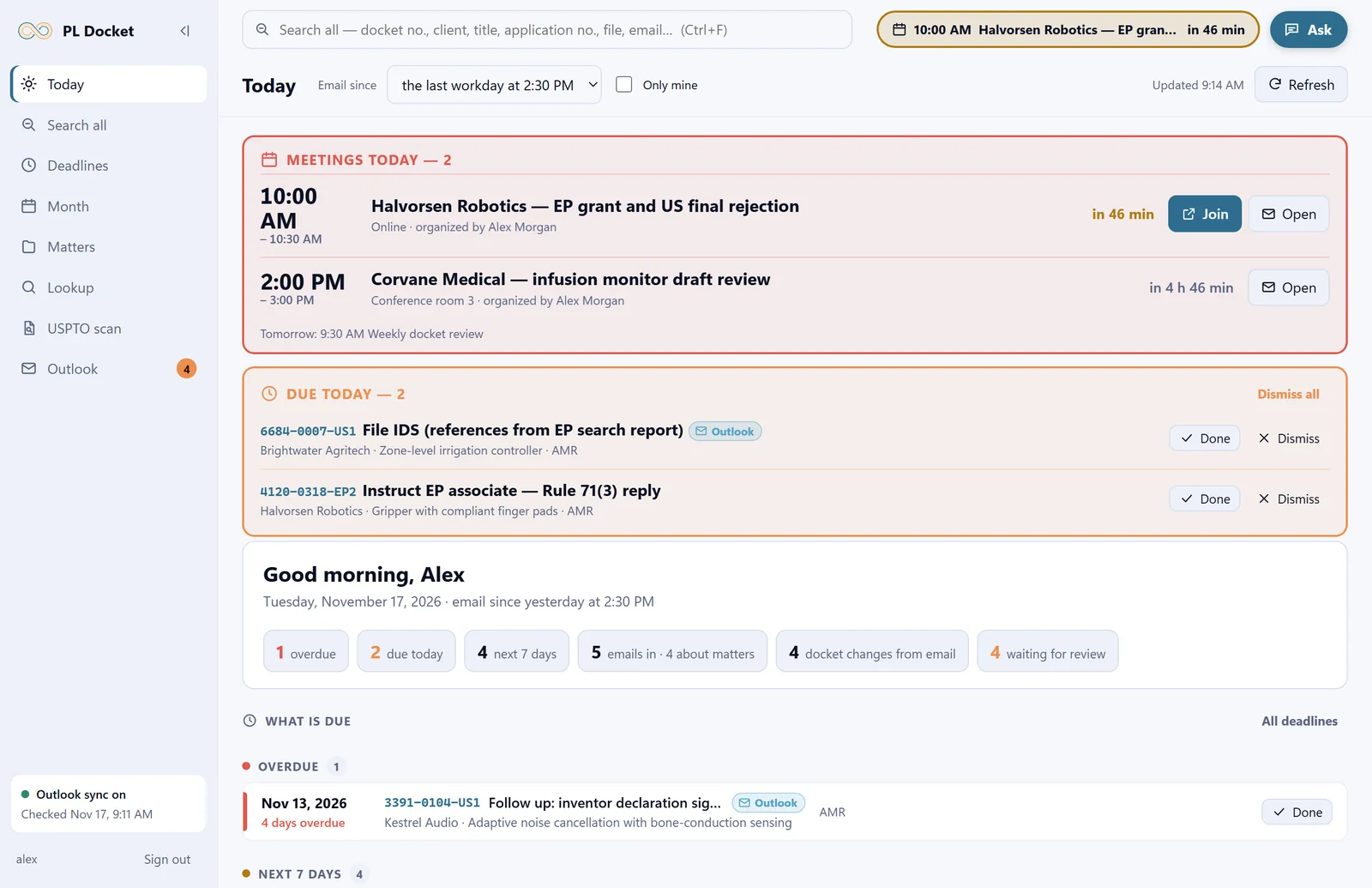
Today, the first page each morning: meetings from your calendar, what is due, what email changed on the docket, and the mail that arrived since yesterday afternoon. Every matter, person, and email shown on this page is fictional.
One docket, three places to work.
The docket itself lives in Patent Loop. The Windows app adds what only a desktop can do: read Outlook and open the files on your PC.
The web docket
Matters and deadlines in a table or a month or week calendar, notices pasted to compute their dates, USPTO scans, reminder rules, a firm docket, and sharing by username. See the web docket.
PL Docket for Windows
The same docket, plus Outlook: email read and docketed as it arrives, Ask over your docket and your inbox, and each matter's folder and emails beside its dates.
Your phone
The Android app shows the same deadlines and matters. Its Ask tab is answered by the desktop app, so questions about email work from anywhere.
Docketing from email
Every few minutes, PL Docket reads new mail in your Inbox, the folders under it, and Sent Items. When an email calls for a date, a status change, or a new matter, the change is made against the docket's own record, and anything uncertain waits for you.
How an email is read
1
Screened without a model
An email must name a docket number or a US application or serial number, or come from the USPTO. Newsletters, scheduling, and office notices stop here.
2
Read against the docket
The model sees the matters the email names, with their open entries, so a reply that reports an action already docketed is not docketed twice. Emails in one thread are read together.
3
Dates come from the rules
For a USPTO action, the model reports the action type and mail date, and the due date and extension ceiling are computed by the docketing rules. A date the email states outright is used as stated.
4
Applied, or held for review
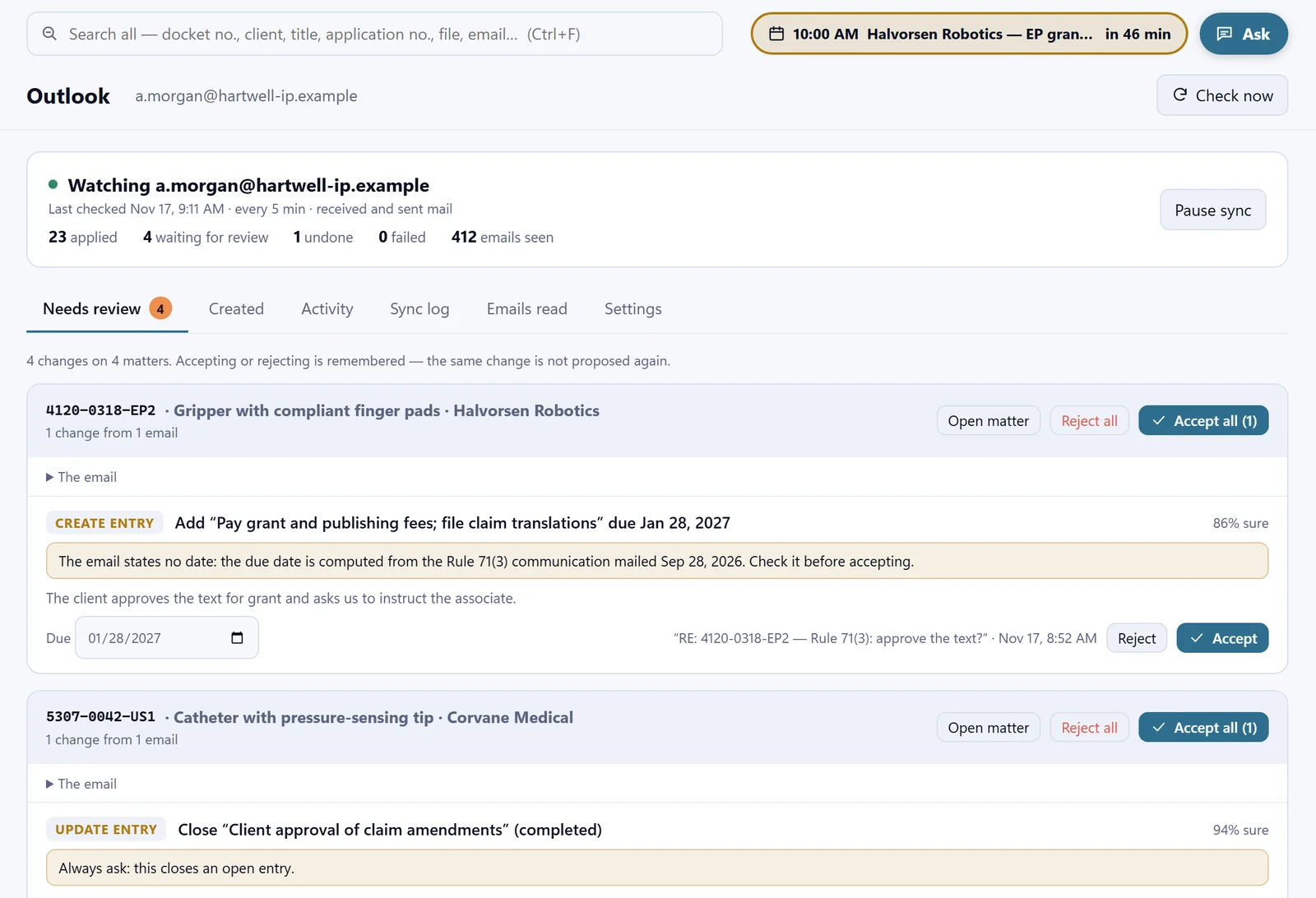
Additions apply on their own. Closing an entry, moving a due date, replacing a value, and anything below your confidence threshold wait under Needs review, grouped by matter.
OutlookNeeds reviewSample data
Held changes show why they are held and which email they came from. Correct a due date before accepting, or reject the change; either decision is remembered, so the same change is not proposed again.
More about docketing from email
To-dos, not only deadlines
A commitment in your email, such as "comments by Friday", or a request from outside the firm becomes a to-do with its date. Your reply that delivers it closes it.
Attached and forwarded email
A cover note that says "please see attached" is read with the email it carries, and a forward is read for what it forwards.
Docket numbers, however written
8853.3017.001, 8853-3017-1, and 8853-3017-US1 are recognized as one matter, so a different spelling never creates a second one.
See where every date came from
Anything added from email carries an Outlook chip; click it to open the email. The creation log and the sync log record every change and every check of the mailbox.
Undo
Every applied change is listed under Activity with what it replaced, and can be undone, unless someone has edited it since.
Scan past mail
Read a date range of older email in one pass, with every change held as a preview until you accept it.
Docket an email yourself
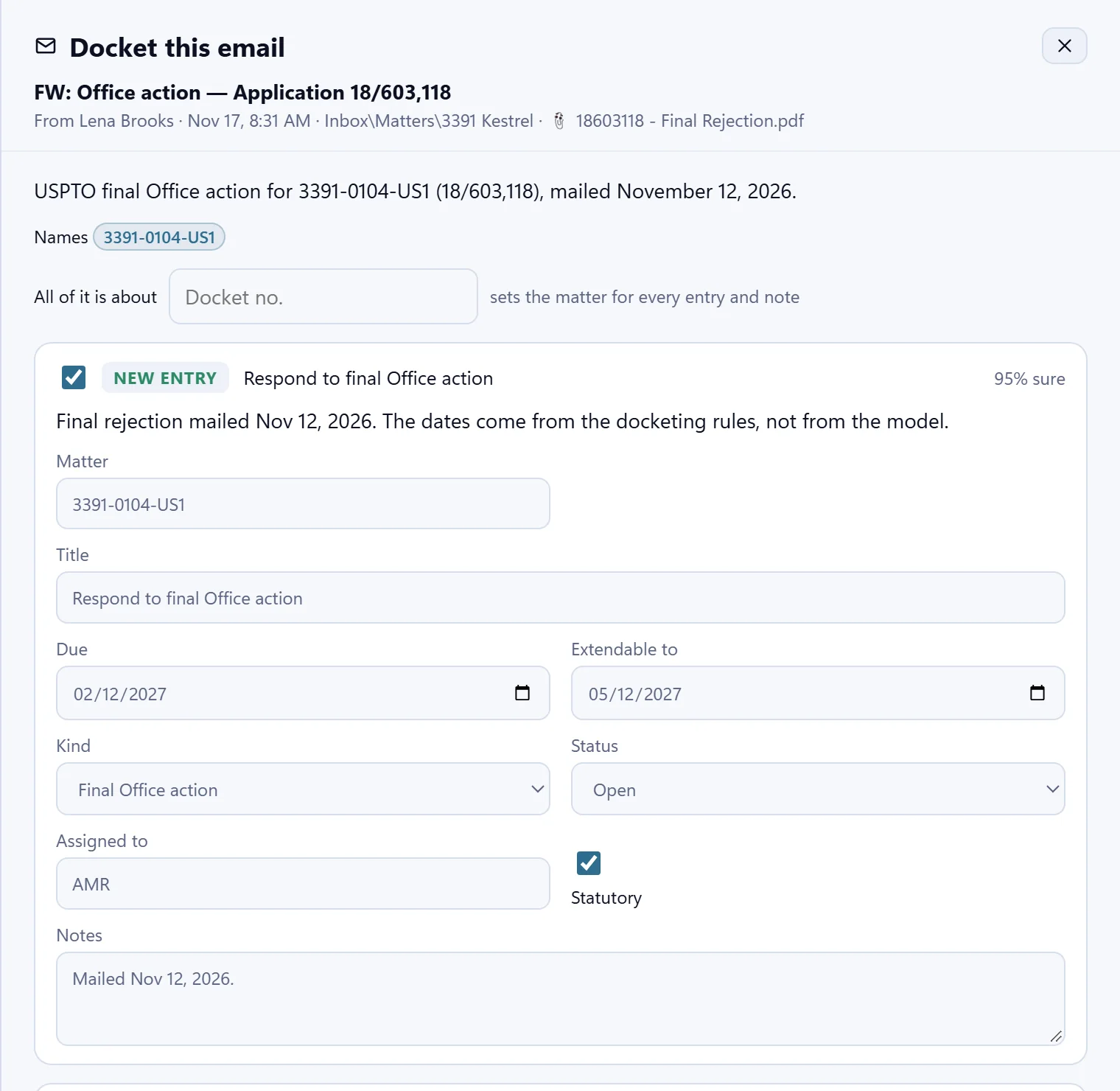
Drag an email from Outlook onto the window, or press Docket… on any email in the app. It is read the same way, and what it would do opens as a draft you can change before anything is written.
In the draft
Every field
Matter, title, due and extendable-to dates, kind, status, who it is assigned to, and notes, all editable.
Switch off or add
Turn any proposed change off, or add an entry, a note, or a new matter.
One matter
"All of it is about" points every entry and note at one matter in a single step.
File the email
Keep a note on the matter that links back to the email in Outlook, even when nothing else needs docketing.
Commit
Nothing is saved until you press Commit, and what is committed can be undone like any other change.
PL DocketDocket this emailSample data
A forwarded final rejection, read into a response deadline with its extension ceiling and a two-month reply date. Each field can be changed before you commit.
Ask
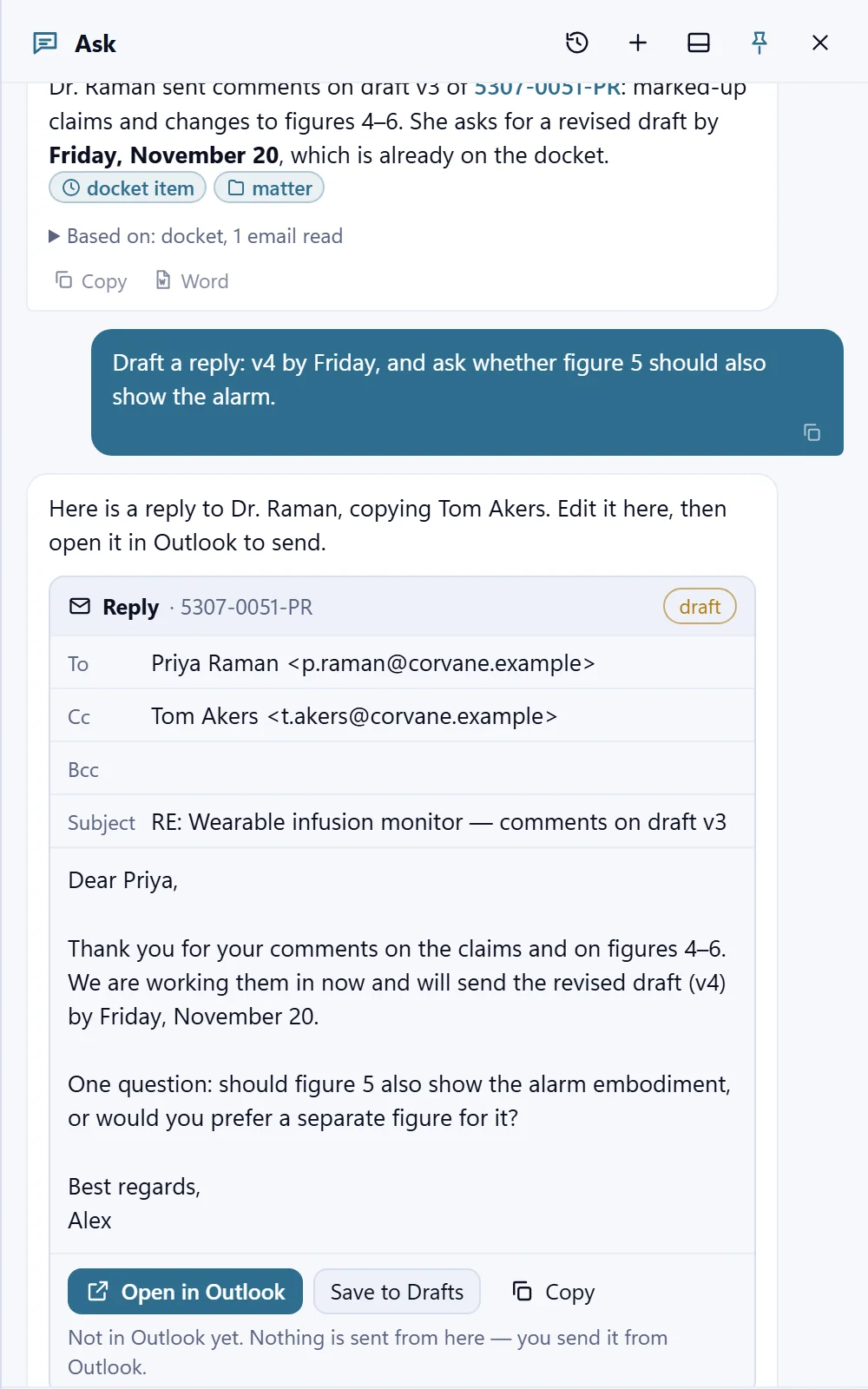
A chat about your docket and your email, open over any page or pinned beside it. Ask what is due, what arrived, or what happened on a matter, have the docket changed, or have a reply drafted from the email selected in Outlook.
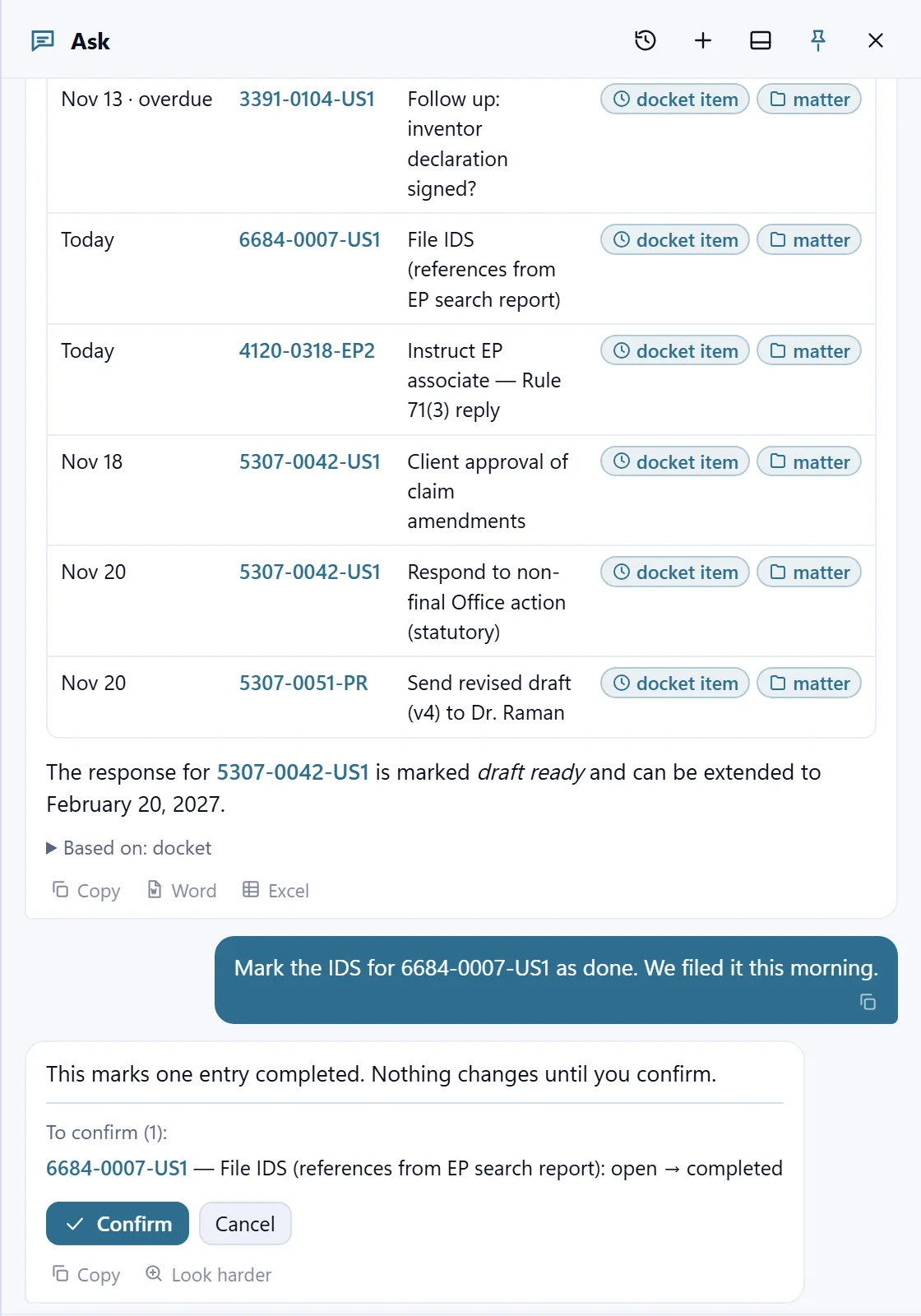
PL DocketAskSample data
The week's entries as a table, then a change proposed and waiting for Confirm.
AskDraft replySample data
A reply drafted from the selected email. It goes to Outlook only when you click, and you send it from there.
Answers from the docket
"What's overdue for me?" or "What did Outlook add today?" Answers come as a sentence, a list, or a table, with links to each entry, matter, and email.
Changes, confirmed first
"Mark the response for 6684-0007 as done." Ask lists exactly what would change, with Confirm and Cancel, and every applied change has Undo.
Your email, every folder
Search any period of received and sent mail by person, subject, or matter. Look harder searches the message text as well.
Replies, never sent
Drafts appear as editable cards. Only a click puts one in Outlook, built with Outlook's own Reply so threading and your signature are kept. Ask has no way to send.
Is everything docketed?
Ask runs a check over a date range and posts what is missing or out of date, for you to accept or reject.
Copy and export
Copy an answer as formatted text, or save it as Word or, when it has a table, as Excel.
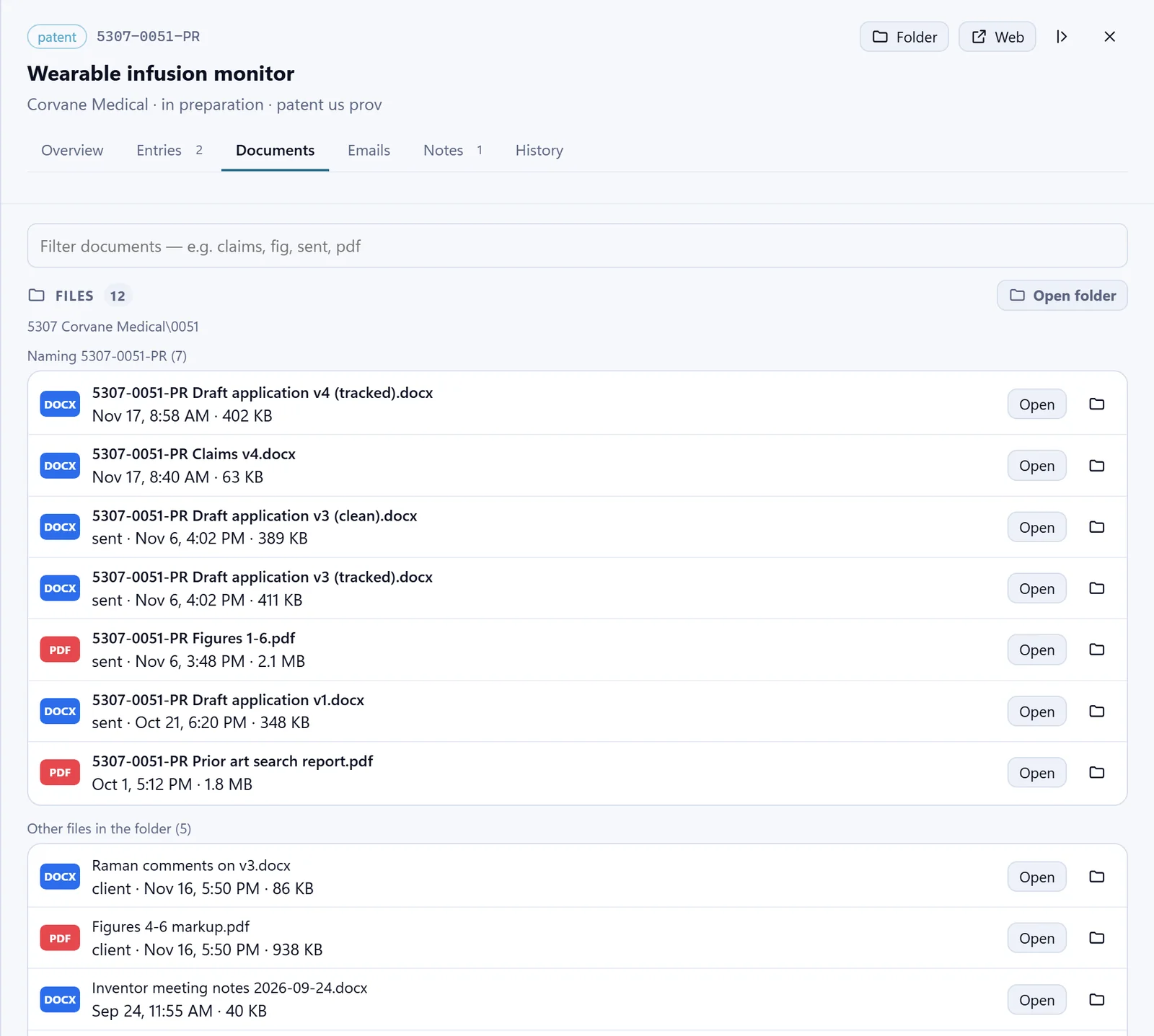
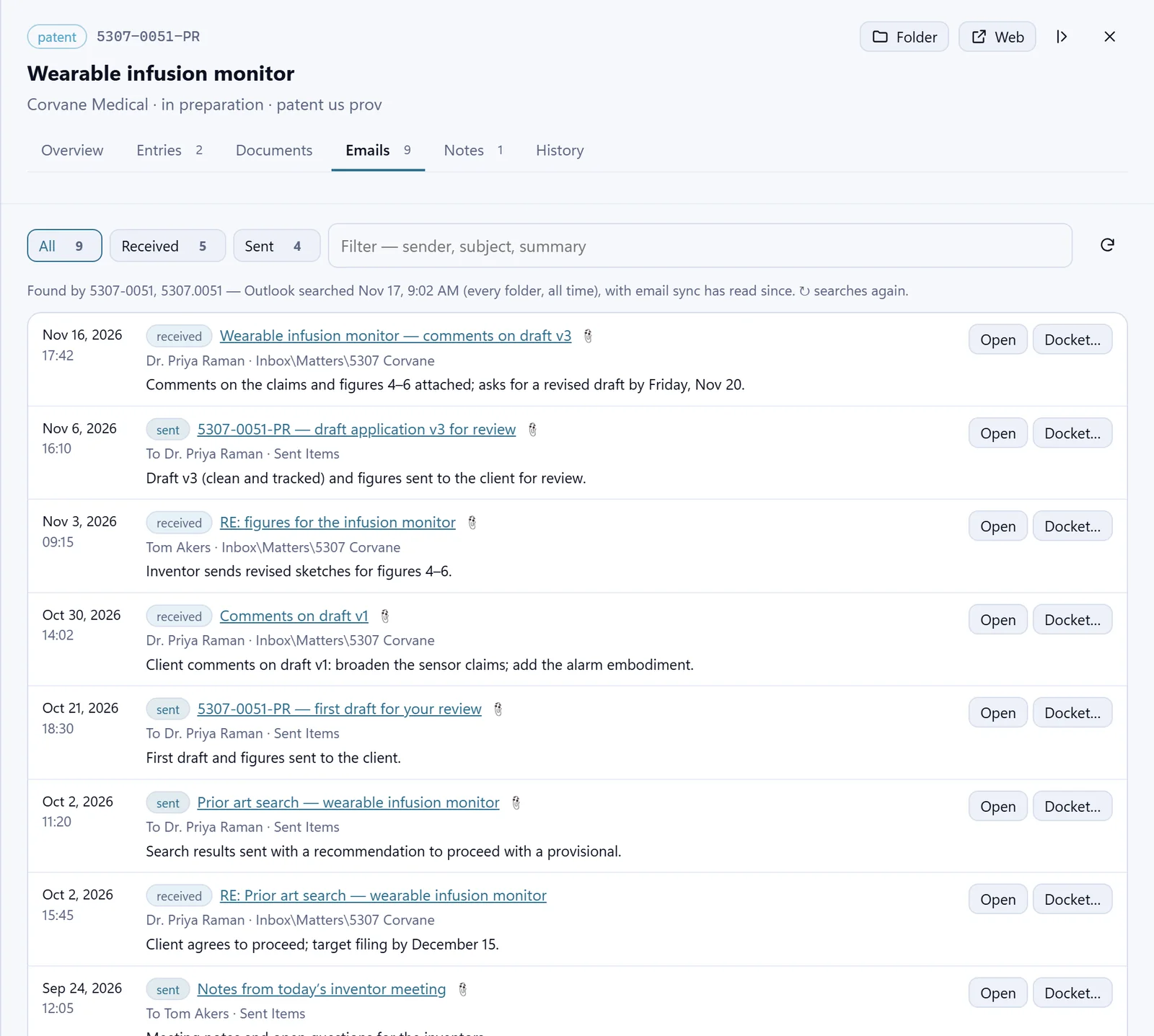
A matter's files and emails, beside its dates
Open a matter and its panel has everything about it: the facts and open entries, the documents in its folder on your PC, every email about it, notes, and its history.
MatterDocumentsSample data
Documents
The matter's folder is found by its docket number. Files that name the matter come first, then the rest of the folder. Open a file in Word or Acrobat, show it in File Explorer, or filter by name.
MatterEmailsSample data
Emails
Every email about the matter, from every folder and all time, received and sent, with a one-line summary. Open one in Outlook, or docket it from here.
Search all
One search bar on every page finds matters, open entries, files, and docketed email at once. Numbers match however they are written.
Read and unread
Each email shown says whether it is unread in Outlook, with a button to mark it read or unread there.
Meetings
Today's meetings from your Outlook calendar sit at the top of Today, and the next one waits beside the search bar with Join.
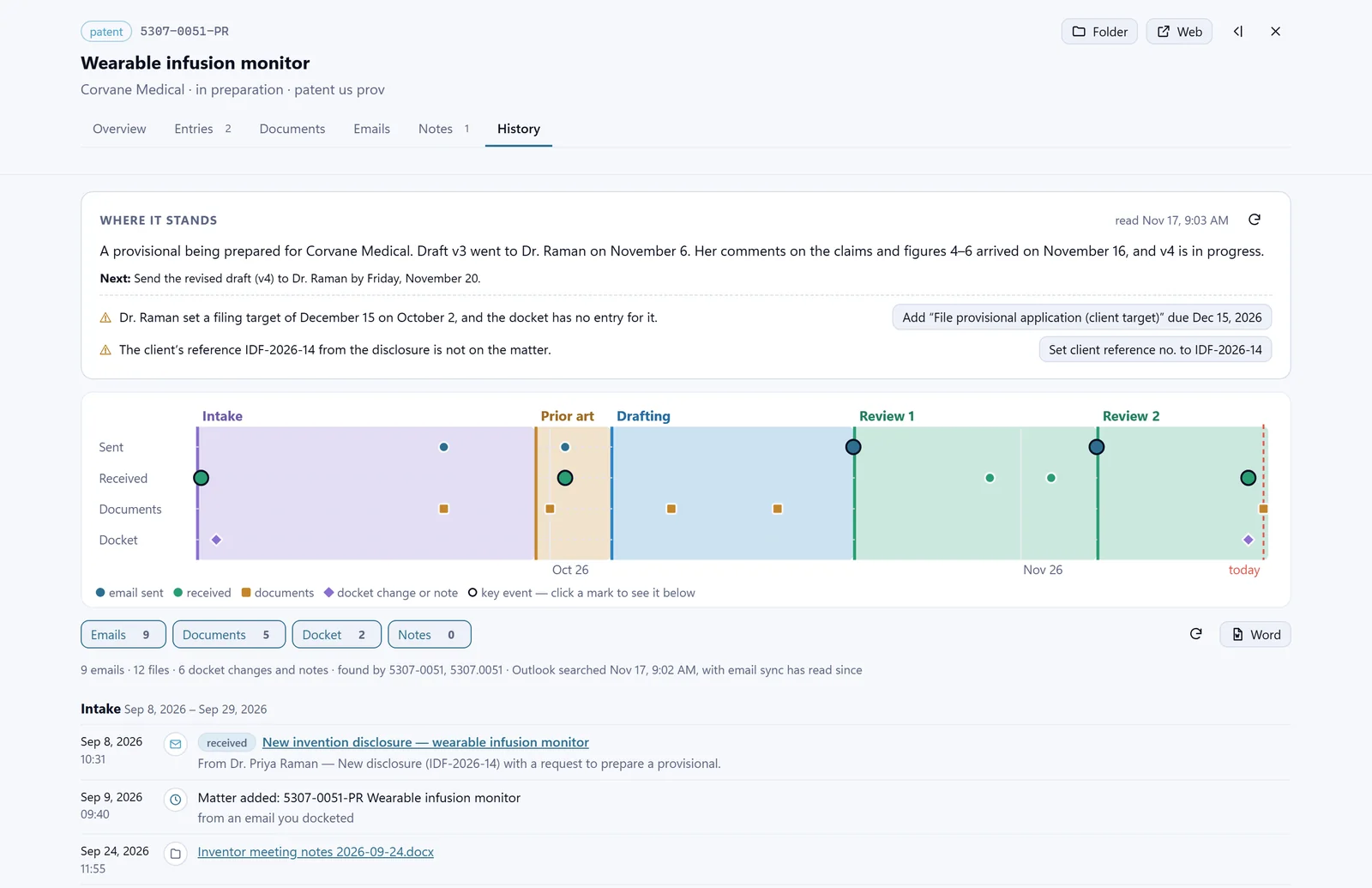
Case history
A matter's emails, documents, docket changes, and notes in one timeline, divided into the stages of the work: intake, prior art, drafting, each round of client review, filing, and after filing.
MatterHistorySample data
Where it stands
A few sentences on the state of the matter, what it is waiting on, and the next step, read from the timeline's subjects, summaries, and file names, not from the text of emails or documents.
Gaps, with a fix
An entry the history shows is done but is still open, a date the client gave that is not on the docket, or a missing reference number, each with a one-click fix you can undo.
Timeline and Word export
Every event as a mark on its day, key events larger. Click a mark to jump to it, or save the whole history as a Word document.
Import from Excel
Bring an existing docket across from the .xlsx report your docketing system prints. Import it into a firm docket, and import again whenever a new report comes out.
How an import works
1
Preview
See how many matters and dates the report would add, and how many are already on the docket, before anything is written.
2
Matched, not duplicated
Matters are matched on their client and matter code, so re-importing an overlapping report adds only what is new.
3
Filled in from the USPTO
Optionally, rows with a US serial number pull the Office's record: title, inventors, and status. The dates appear at once, and the details fill in over the next few minutes.
4
Kept and reversible
Every import is kept with its original spreadsheet, so a date can be traced to the file it came from. Undoing an import removes everything it added.
DocketFirmIllustrative example
Import a docketing report
The .xlsx your docketing system prints. Matters are matched on their client and matter code, so re-importing an overlapping report adds what's new and leaves the rest alone.
docketing-report-2026-11.xlsx214 KBPreviewImport
Fetch USPTO data for US applicationsPulls the Office's record for rows with a US serial number.
docketing-report-2026-10.xlsxcovers 2026-10-01 to 2027-09-30 · 141 matters, 588 datesUndo
The second import of an overlapping report: dates already on the docket are skipped as already present.
You stay in control of the mailbox and the docket.
A missed deadline is the failure a docket exists to prevent, so the app is cautious where it matters and shows its work everywhere else.
Nothing in Outlook is changed
Sync only reads. No email is moved, changed, or sent. Drafts reach Outlook only when you click, and you send them yourself.
Your own mailbox, off by default
Outlook sync is off until you turn it on, and it reads only the mailbox you name. Other accounts in your Outlook profile are never opened.
Deadlines are never closed silently
Closing an entry, moving a due date, or replacing a value waits for your review, and every applied change can be undone.
What the model reads
Only docket-related email: subject, sender, recipients, attachment names, and the newest message, with signatures, legal disclaimers, and phone numbers removed. It writes procedure onto the docket, never the substance of the email.
Files stay on your PC
A matter's documents are listed from its folder on your PC and opened there. Only folder listings are read.
Every date has a source
Each change records the email it came from, with its subject, sender, and date, so anyone the docket is shared with can see where a date came from.
Yes. PL Docket for Windows works with classic Outlook on the same PC. The web docket can also export its dates as a calendar file for Outlook, and re-exporting updates the entries already there.
Does the AI set the due dates?
No. For a USPTO action, the due date and the extension ceiling are computed by the docketing rules from the action type and mail date. A date the email states outright is used as stated, and when the two disagree, the change waits for you. Confirm every computed deadline against the notice.
Can I import my existing docket?
Yes, from the .xlsx report your docketing system prints. Preview it first; re-importing an overlapping report adds only what is new, and any import can be undone.
What does the Windows app need?
Windows with classic Outlook (the new Outlook has no automation interface for it to use) and the Edge WebView2 runtime, which ships with Windows 11. You sign in with your Patent Loop account.
Who sees what it adds?
What sync adds is ordinary docket data, so everyone your docket is shared with sees it, marked with the email it came from. The links that open an email work only on a PC with that mailbox.
Put your docket in the loop.
Start with the web docket, or talk to us about the Windows app and Outlook.